
Notifications
Learn how to set up and manage notifications for your Fansly Creator Bot.
Plan Requirements
To use the notifications features, you must be on at least the Creator plan.
What are Notifications?
Notifications are a way for the Fansly Creator Bot to keep you and your community informed about recent posts and live streams on Fansly. By setting up notifications, you can ensure that your Discord server stays updated with the latest content from your Fansly account.
Setting Up Notifications
First, you need to initialize the notifications feature by running the /notifications init command in Discord. This will create an internal cache of your Fansly posts and live streams, allowing the bot to track changes and notify your community accordingly. The first 100 posts and live streams will be cached, and the bot will continue to update this cache as new content is posted.
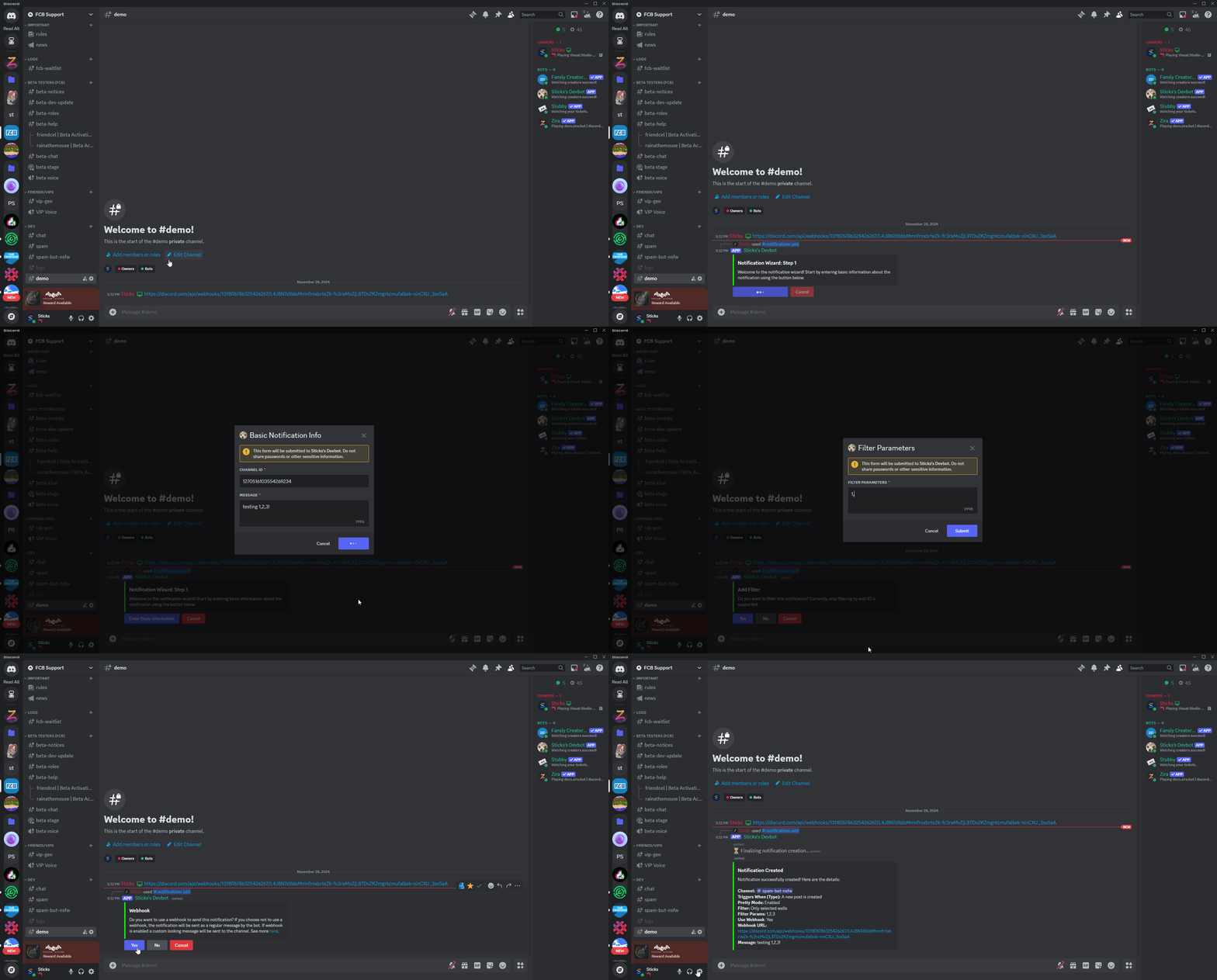
To setup notifications, run the setup wizard command /notifications add . This will guide you through the process of configuring notifications for your Fansly posts and live streams. A GIF is provided below to help you understand the basic setup process:
One at a time
Please note that you can only set up one notification at a time. If the
process gets stuck, or you want to start over, you can run the
/notifications drop_pending command to reset the wizard process. This
will clear any existing progress and allow you to start fresh.
Templates
The Fansly Creator Bot uses templates to bring in relevant information from your Fansly posts and live streams into Discord. These templates are used to format the notifications that are sent to your server.
We've listed the available templates below, along with their descriptions:
| Template | Description |
|---|---|
{{ creatorName }} | The name of the creator (you) |
{{ postContent }} | The content of the Fansly post |
{{ postLink }} | The URL of the Fansly post |
More templates may be added in the future, so keep an eye out for updates!
Important Note
Please note that the templates are case-sensitive and must be used exactly as shown above. If you use a different case or misspell a template, it will not work as expected and may not format the notification correctly.
Setup Wizard Steps
The setup wizard will guide you through the process of configuring notifications. Here are the steps you will go through and some of the things to note while adding a notification:
1. General Settings
This will ask for the channel ID where you want the notifications to be sent, the message content (templates are available), and what roles to mention, if any.
Some notes about this step:
- The channel ID must be a valid channel in your Discord server where the bot has permission to send messages, and embed links.
- The channel must be marked as NSFW to comply with Discord's Terms of Service.
- Mentions must be a comma separated list of role IDs. If you don't want to mention any roles, leave this field empty. An example of a valid mention would be
123456789012345678, 234567890123456789.
Protip
You can close the dialog at any time and the bot will save your progress, provided you don't restart discord. This is useful if you need to gather some information before completing this step!
2. Content Types
This step will ask you to select the content types you want to receive notifications for. You can choose from the following options:
- Posts: Notifications for new posts on Fansly.
- Live: Notifications for new live streams on Fansly.
Live Stream information
Currently, this option does not do anything. It is a placeholder for future updates where live stream notifications will be implemented. We are working on this feature and will update the documentation once it is available.
3. Filtering
This step is optional and allows you to filter the content types you selected in the previous step. Currently, sorting by wall ID is the only available option. This will allow you to receive notifications only for specific walls on Fansly.
To get wall IDs, you can run the /listwalls command in Discord. This will display a list of all your walls along with their IDs. Copy the IDs of the walls you want to filter by and paste them into the input field, separated by commas. (example: 123456789012345678, 234567890123456789)
4. Pretty Mode
This step allows you to enable or disable "Pretty Mode" for your notifications. When Pretty Mode is enabled, the bot will format the notifications in a more visually appealing way, using embeds and other Discord features to enhance the presentation.
5. Webhook URLs
Webhooks are a way to "customize" the appearance of the "user" that sends the notification. This is useful if you want to have a custom avatar or name for the bot that sends the notifications.
If you don't know how to create a webhook, discord has a help article that explains how to create webhooks in your server. Simply paste the generated webhook URL into the input field if you'd like to use a webhook for notifications.
Managing Notifications
You can manage your notifications by running the /notifications list command in Discord. This will display a list of all the notifications you have set up, along with their details. You can also use /notifications remove <id> to remove a specific notification by its ID, ID is also auto-completed in the command.
Editing Notifications
To edit an existing notification, you need to select it first. You can do this by running the /notifications edit select <id> command, where <id> is the ID of the notification you want to edit (supports auto-complete). After doing so, a success message will be sent, and you can then run the /notifications edit field command to modify the notification settings.
A list of fields you can edit will be provided, and you can select the field you want to change. The available fields are:
| Field | Description |
|---|---|
channel | The channel ID where the notifications will be sent. |
message | The message content for the notification. Supports templates. |
mentions | The roles to mention in the notification. Comma-separated list of role IDs. |
type | The content types to receive notifications for (Posts, Live). |
filter | What mode to filter the notifications by, currently only ONLY_SELECTED_WALLS is available or ALL to disable filtering. |
filter_parms | The parameters for the filter, such as wall IDs. |
pretty_mode | Whether to enable or disable Pretty Mode for the notification. |
webhook | Use webhooks for this notification. Either true or false. |
webhook_url | The URL of the webhook to use for the notification. |
After entering all data, the bot will confirm that the notification has been updated successfully.
Getting an validation error?
If you get a validation error when trying to edit a notification, it means that the data you entered is not valid. Please check the input fields and make sure they are correct. The bot will provide specific error messages to help you identify the issue.